Voice-over synchronization keeps a scene long enough for its recorded narration and updates later scene starts when a take changes. VO sync refers to that production workflow. It does not mean display refresh synchronization, and it does not locate spoken words automatically.
A scene can contain its entire narration while showing the assignment at the wrong word. Duration calculation prevents clipping and stale offsets; phrase synchronization connects events inside the scene to the actual delivery.
Plan the visuals before recording
Our authoring order starts with the concept and its visual explanation. We write narration to those visuals, then produce the audio. The recorded take determines the final scene boundaries, and playback tells us which local events need adjustment.
The fictional support product DispatchDesk provides a small timing exercise. An urgent checkout ticket arrives, a routing rule assigns it to Payments, and the result preserves its priority. The visual beat map records what each scene must show.
Each scene needs a stable name and an authored visual minimum. The minimum includes the time a viewer needs to understand the action and read its result. A faster narrator should not shorten that reading time automatically.
Prepare the inputs
Install Bun using its official installation instructions, then run bun --version in a terminal to confirm it is available. The timing exercise runs locally with Bun and uses only its built-in file APIs. It makes no network requests and needs no packages or credentials. The audio filenames and durations are fictional fixtures; no audio files accompany them. In a production project, the measurement step would read the duration of each retained recording and provide those values to the timing calculation.
Create an empty folder for the exercise and open a terminal in that folder. Download timing.ts, plan.json, and takes.json into an empty directory. Keep those filenames. The script uses the file APIs included with Bun; it does not require an installation step inside the project.
plan.json owns scene order and the visual minimums. Each scene also declares whether it has speech and records any silence before or after that speech:
{ "id": "routing", "visualMinimumSeconds": 5, "narration": "speech", "leadInSeconds": 0, "endPadSeconds": 0.4 }
takes.json supplies the retained audio filename and duration for each speaking scene. Its keys match the plan's scene names:
"routing": { "file": "fictional-routing-v1.wav", "measuredSeconds": 6.4 }
These excerpts describe entries in the downloadable files; they are not replacements for the complete JSON documents. Keep the exact approved recording for an unchanged scene. Replacing every take would create unnecessary delivery and timing changes.
The timing rule uses the larger of the visual minimum and the audio requirement. A lead-in counts before speech, and an end pause counts after it. Round up to whole frames so the scene covers its required duration. When an editor only places audio on whole frames, round its lead-in first and use that actual placement in the calculation.
actual audio lead-in = ceil(requested lead-in * fps) / fps
required seconds = max(visual minimum, actual lead-in + audio seconds + end pause)
scene frames = ceil(required seconds * fps)
next scene start = current scene start + scene frames
Generate one timing file
The script sums durations as integer microseconds before converting them to frames, avoiding an extra frame from decimal floating-point addition. It rounds sub-microsecond inputs upward to preserve the audio tail.
The downloaded script rejects a missing take, a duplicate scene name, or a take with no matching scene. A deliberately silent scene uses "narration": "silent" in the plan and has no entry in takes.json.
Run it from the directory containing the three files:
bun timing.ts plan.json takes.json output/timing.json
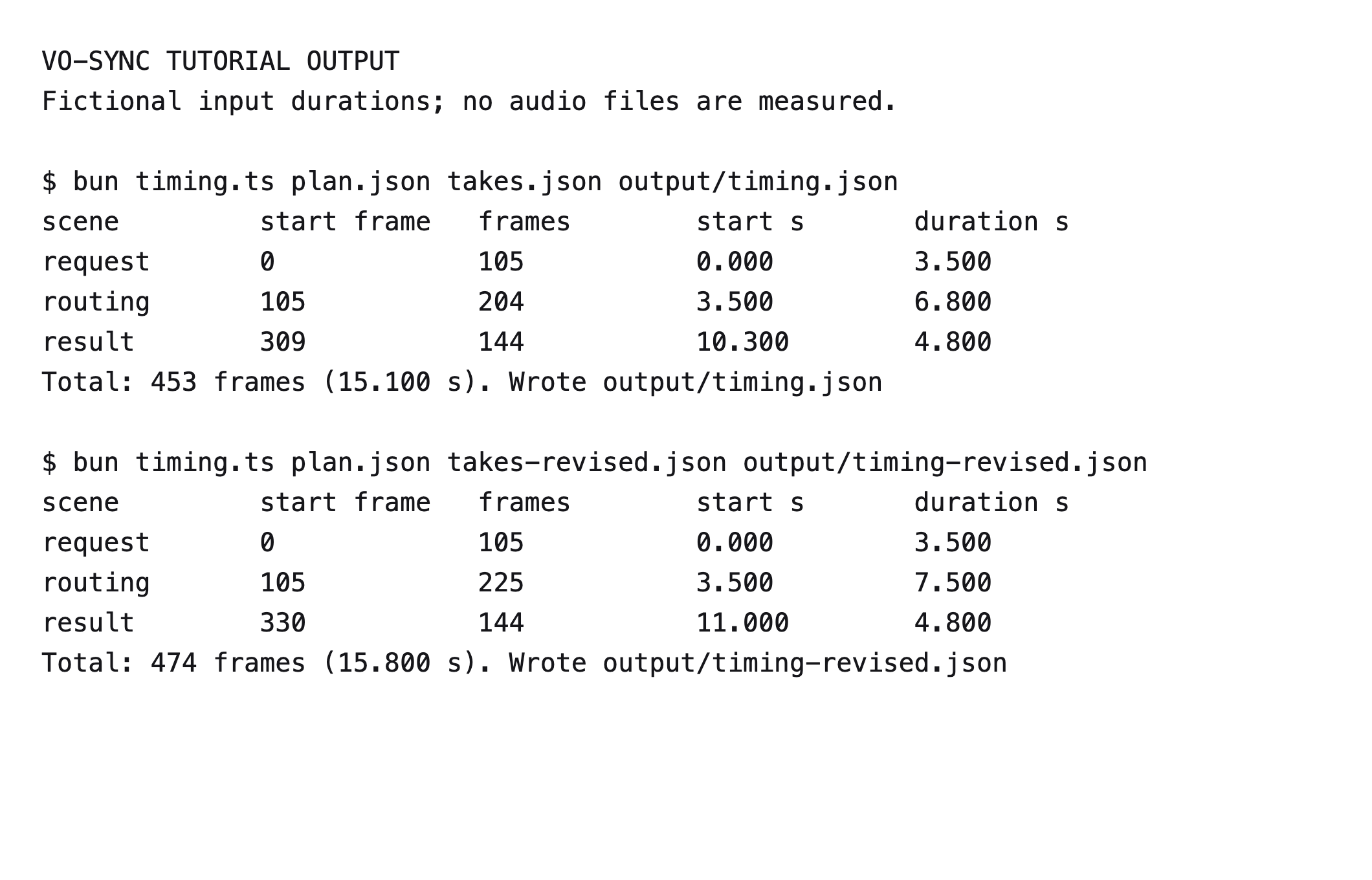
The printed values are:
| Scene | Start frame | Duration frames | Start seconds | Duration seconds |
|---|---|---|---|---|
| request | 0 | 105 | 0.000 | 3.500 |
| routing | 105 | 204 | 3.500 | 6.800 |
| result | 309 | 144 | 10.300 | 4.800 |
The total is 453 frames, or 15.1 seconds. Routing needs 6.8 seconds because its 6.4-second take requires a 0.4-second tail. The result retains its 4.8-second visual minimum even though its speech and pause need only 4.1 seconds.
output/timing.json contains the same scene starts and durations, plus each audio file's absolute start frame. Its endFrameExclusive names the first frame after a scene; the routing scene occupies frames 105 through 308.
Your editor or render code should consume this generated file for both picture and audio. In a frame-based composition, place a scene at startFrame, give it durationFrames, and place its take at audio.startFrame. Inside a scene's local timeline, use audio.offsetFrames instead. Adding the scene start a second time would delay the audio.
Replace one take and rerun
Copy takes.json to takes-revised.json, or download the completed revision fixture. The revised copy changes only the routing entry:
"routing": { "file": "fictional-routing-v2.wav", "measuredSeconds": 7.1 }
That line replaces one property inside the existing JSON object. The request and result entries stay as they were. Run:
bun timing.ts plan.json takes-revised.json output/timing-revised.json
| Scene | Start frame | Duration frames | Start seconds | Duration seconds |
|---|---|---|---|---|
| request | 0 | 105 | 0.000 | 3.500 |
| routing | 105 | 225 | 3.500 | 7.500 |
| result | 330 | 144 | 11.000 | 4.800 |
The film grows to 474 frames, or 15.8 seconds. The result starts 21 frames later, and its audio moves with it. Neither its approved take nor its own duration changes.
Repair the scene after it grows
The extra 0.7 seconds might give a viewer useful time to inspect the routing condition. It might also expose a long pause after the assignment finishes. Watch the changed scene with its neighbors before accepting the new boundary.
If the new sentence introduces another feature after the ticket reaches Payments, remove that clause or give the feature its own visual explanation. If the sentence explains retained priority, keep the priority field readable during that clause. Continuous decorative motion would compete with the comparison.
Locate the destination phrase in the replacement take even if the total duration looks familiar. A narrator can pause before “Payments” in one read and after it in another. The phrase timing walkthrough shows how to record that difference and adjust the event.
Troubleshoot the calculation
| Problem | Check and correction |
|---|---|
Missing take: routing | Match the take key to the stable scene id. Use an explicit silent scene only when silence is intended. |
Take has no scene | Correct a misspelled key or remove the obsolete take after removing its scene. |
| Audio still clips | Measure the actual retained file, include its lead-in, and confirm that the editor uses the generated duration. This exercise does not inspect media files. |
| Audio starts late | Check whether the editor expects a local or absolute frame. Do not add startFrame to audio.startFrame. |
| Later scenes still start at old times | Find the hand-entered scene starts in the editor and replace them with the generated values. |
| A word and event drift apart | Review their local timing. Recalculating scene length does not align phrases. |
| Captions drift after the edit | Rebuild their film offsets from the revised scene starts and approved local cues. |
Retain the reviewed audio alongside the timing file and identify the export that uses them. The caption workflow continues from those same scene offsets.