20cuts Creation System
Learn to make product videos with AI.
Know what to prompt, what to change, and how to make it look right. Get the projects, guided prompts, and practical lessons that take you from a first idea to a finished video.
30-day money-back guarantee. Yours to keep. No subscription.
 ▷ Watch the film
“Carry the same object into the next scene. Let the viewer follow the change.”
 Learn light, depth, and camera moves
Watch the result.
Then learn how it’s made.
Every film below comes with its complete written tutorial and editable project. Open the source, understand the decisions, and use the techniques in your own work.
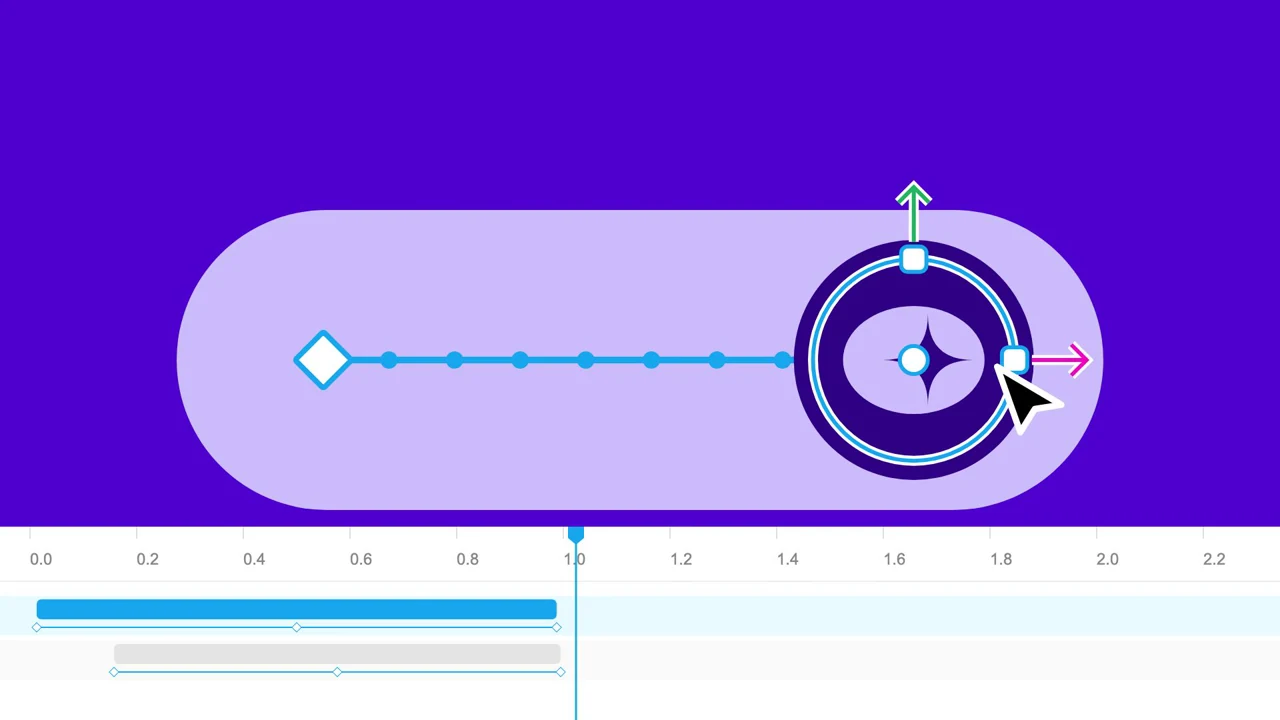
Object continuity and elastic motion
Make a design tool feel tactile through elastic controls, photographic detail, and transitions that carry an object from one scene to the next.
These are complete, silent films for fictional products. Each lesson names its inspiration and explains the visual techniques. Start with the simpler Relay template, then explore these 4 projects as your skills grow.
Learn what to ask AI.
And what to look for.
A useful prompt gives your assistant a story, a visible action, and something specific to check. The system shows you how to write those instructions, then refine the picture they produce.
Use the included Relay project. Show one launch request becoming a shared plan. Keep the task ‘Launch the new dashboard’ visible as it moves from the request list into the detail view. Reveal Maya as owner, complete the three next steps, then land on ‘More shipping.’ Give me the storyboard before changing the code.
An excerpt from the guided storyboard exercise. The matching Relay example is already included.
Watch the 33-second Relay example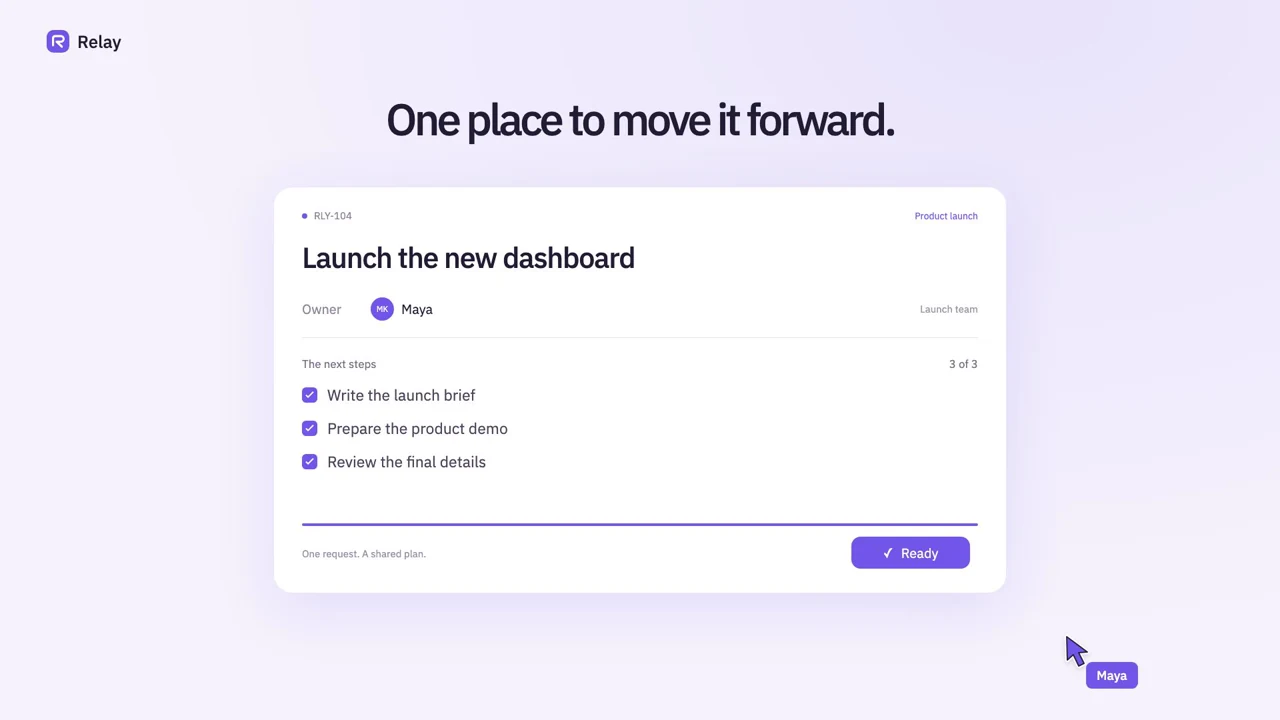
Give it context. Supply the brief, screens, and source files it should use.
Describe the picture. Name the object, its movement, and the result.
Review the change. Compare frames and give the next precise instruction.
A process you can
use on your next video, too.
First run the included Relay example with the setup guide. Then work through four core lessons that teach the decisions behind the prompts, so you can adapt the method to your own product.
- 1
Story & storyboard
Find the story worth showing.
Give your assistant a product brief, real screens, and one useful result. Use the first prompts to turn that material into a visual storyboard.
A brief and a scene-by-scene plan
- 2
Your first edit
Make your first scene work.
Open a working project with your coding assistant. Use the scene-editing prompt to change the words, colors, and product screens to fit your story.
Your first personalized video export
- 3
Motion & visual craft
Tell AI what to improve.
Learn to describe a camera move, a readable pause, or an object carried between scenes. Give specific feedback when the motion feels wrong.
A focused repair prompt and a better scene
- 4
Review & export
Review it like a filmmaker.
Watch the cut, inspect the frames, and use the scorecard to spot cramped type, confusing actions, and rushed transitions. Refine, render, and compare.
A reviewed MP4 and a repeatable process
Build the visual story first. If you add narration or audio later, write and time it to the actions on screen.
Everything you need
to start making.
Download the system, open it with your coding assistant, and follow the first-session guide. Keep the files and use them on future projects.
- A guided first session with AI
Setup instructions, a filled practice brief, and the exact order to use the prompts.
- An editable 33-second video template
Relay and Orbit example films, configurations, storyboards, and frame exports. Change the copy, colors, and screens.
- Five reusable production prompts
Plan the story, build the storyboard, adapt the scenes, repair motion, and review your export.
- Four core craft lessons
Worked examples, files to edit, exercises, troubleshooting, and a visual review scorecard.
- 4 complete launch-film tutorials
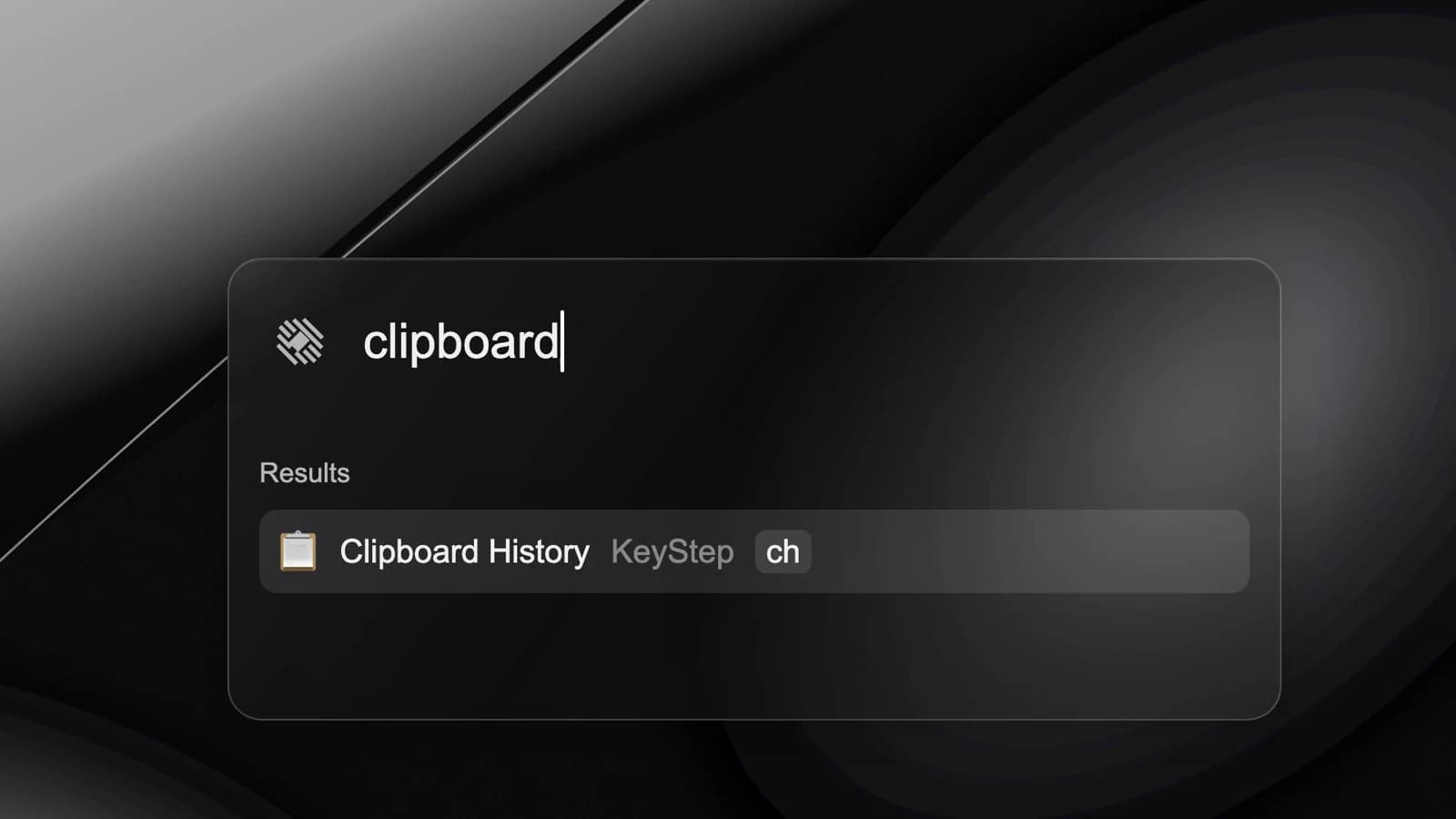
Forma, Clasp, Aster, and KeyStep: full written walkthroughs, example films, and separate editable source projects.
Try your first scene
before you buy.
Download a working 12-second type animation. Change the headline and colors, preview it in your browser, and export a clip on your computer.
Download the free sceneSource and setup guide included. No account or email required.
Explore the free prompts and planning toolsOpen it. Try it.
Decide with the files in hand.
Follow the guided first session and try the system on a real idea. If it isn’t right for you, request a full refund within 30 days of purchase. You can open and download the files before deciding.
Request a refund through our billing formInclude your purchase email and order reference so we can find your payment.Know what you’re
getting into.
You can start as a beginner in video and prompting. You’ll work with editable files and run a few setup commands; the guide and your coding assistant help you through them.
Bring a computer. Use your own coding assistant for guided edits. The projects use Node.js 22+, npm, React, and Remotion. Your AI plan and any required Remotion license are separate.
Ask a question before buyingI’ve never made a video. Where do I start?
Start with the guided first session and the Relay template. Render the included example first, then use the supplied practice brief and prompts to make one small change. The four core lessons explain the story, source files, motion, and review process. Move into the longer film projects once that first workflow makes sense.
Which AI tools can I use?
Use a coding assistant that can read and edit a local project and help you run terminal commands. The prompts are plain text and the projects use React and Remotion. A chat-only assistant can help plan and review, but you’ll need to apply its changes and run the project yourself. AI access is not included in the purchase.
Do I need to know how to code?
Your first edits are guided changes to text, colors, and screenshots in an existing project. You don’t need to build an animation engine from scratch. You should be willing to open files, install the documented tools, and run commands with your assistant’s help. More ambitious scenes involve React and TypeScript edits; the advanced projects give you working source to study.
Is this an app, a course, or a prompt pack?
It’s a downloadable production system: editable video projects, written lessons, guided prompts, and worked examples. You make the video on your computer. The lessons teach you how to direct and review your assistant’s work. There is no hosted video editor or automatic video generation service.
What exactly does the one-time payment include?
The current creation-system download, its example films and lessons, and all 4 current launch-film tutorials with their separate source downloads. Keep using your downloaded files under the included license. There is no recurring bill. Future products or releases are not required to use this purchase.
Can I use my own product screens?
Yes. Add your screenshots and point the template at them, or adapt the editable interface components. A screenshot is a still image; animating controls inside it requires a source change. The lessons explain that choice so you can give your assistant the right instructions.
Can I make videos for clients?
The included license permits your own and client video productions. Keep the source kit within your team; don’t resell it as a template pack. Review each project’s third-party notices and use assets you have permission to publish. Remotion’s separate licensing terms also apply.
How does the money-back guarantee work?
Request a full refund within 30 days of purchase through the billing form. Include your purchase email and order reference. Downloading the files does not remove your eligibility. Refunded purchases lose paid access and the right to continue using the refunded kit; see the purchase terms.
20cuts Creation System
Your next video starts
with a better first prompt.
Get the method, the examples, and the files to begin.
30-day money-back guarantee. Pay once.
Want us to make the film? Explore the $899 studio package or send us a brief.