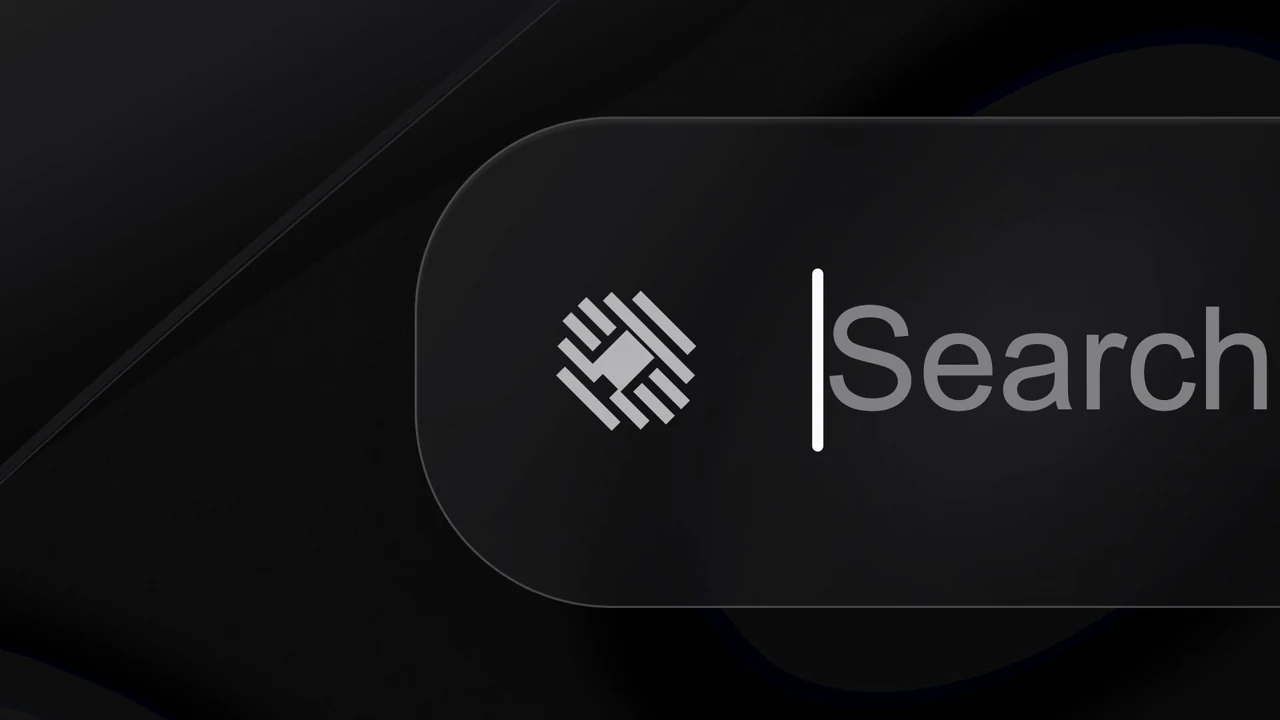
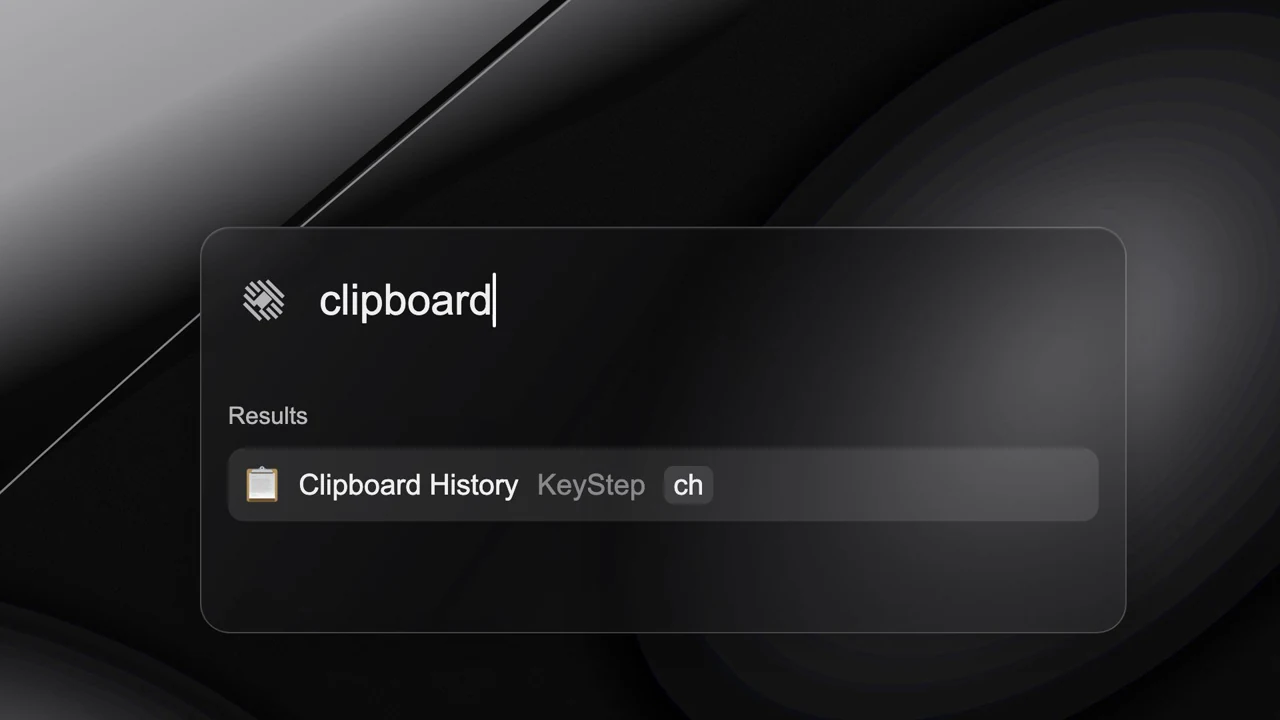
Build a complete launch video for KeyStep, a fictional desktop launcher. The finished film moves through search, hotkey setup, clipboard history, emoji selection, dictation, and a focus assistant. It closes by turning those demonstrations into a product announcement. The composition contains 1,156 frames at 30 fps: 38.533 seconds at 1920 × 1080.
Inspired by: Raycast’s Coming 2026 film. This exercise studies its monochrome materials, extreme interface crops, carried objects, and announcement cadence. KeyStep is a fictional product with its own diagonal, segmented identity. Sprint and Forge are fictional integrations. Every visible surface, wallpaper, waveform, and mark in the project is editable React, SVG, or text. No reference footage, source screenshots, logos, or soundtrack are included.
The project is silent. Its sequence must communicate without narration. Build the visual sequence first; write and time any later narration to the finished actions.
The full film and the first three lesson sections are public. The complete lesson and editable source project are included in your one-time purchase of the 20cuts Creation System.
The task and the files you need
Your task is to make a desktop launch film that demonstrates a chain of related capabilities while retaining one material system. A search becomes a selected command. That command gets a hotkey. Clipboard content leads to a symbol picker. One symbol becomes a dictation control. Dictation leads into an assistant request, which produces tool activity. The feature labels at the end refer to things the viewer has already seen.
Download and unzip the KeyStep project attached to this lesson. You need Node.js 22 or later, npm, a terminal, and enough disk space for dependencies and video output. The package includes React 19.2 and Remotion 4.0.488. It has no API-key requirement or private-library dependency.
Run these commands from the unzipped folder:
npm install
npm run check
npm run dev
Choose KeyStepLaunch in Remotion Studio. Watch the full sequence, then render the untouched version:
npm run render
The MP4 is written to the project’s out folder. Keep that first export while you edit. Comparing against a known working cut makes it easier to identify whether a change affects the interface, camera, or timing.
| File inside the download | What it owns |
|---|---|
src/videos/tutorial-keystep/entry.tsx | The KeyStepLaunch composition and export settings |
src/videos/tutorial-keystep/Video.tsx | Native surfaces and the film’s passage components |
src/videos/tutorial-keystep/motion.ts | Passage boundaries, interpolation helpers, feature cues, microphone geometry, and runtime audit |
src/videos/tutorial-keystep/materials.ts | Monochrome fills, gradients, edges, and accent colors |
The small file count is deliberate. The project is a complete worked example that you can inspect without learning a large framework. Keep the existing surface anatomy while learning the camera and timing mechanisms.
Follow the complete beat map
The table uses zero-based frame numbers with inclusive ends. In code, PASSAGES uses exclusive ends: the search passage ends at 170, and the hotkey passage starts at that same frame. Both describe the same boundary.
| Frames | Seconds | Picture and purpose |
|---|---|---|
| 0–29 | 0.000–0.967 | The drawn metallic wallpaper establishes material and contrast before the interface arrives |
| 30–109 | 1.000–3.633 | An extreme close crop travels along the launcher’s search field |
| 110–122 | 3.667–4.067 | The camera pulls back to establish the complete launcher surface |
| 123–169 | 4.100–5.633 | “clipboard” types at explicit keystroke cues; Clipboard History becomes the selected result |
| 170–195 | 5.667–6.500 | The command’s action menu exposes Set Hotkey |
| 196–218 | 6.533–7.267 | The hotkey recorder appears with the initial key combination |
| 219–224 | 7.300–7.467 | The displayed key combination changes through a brief intermediate state |
| 225–253 | 7.500–8.433 | The intended Option–Command–V shortcut settles in the recorder |
| 254–266 | 8.467–8.867 | The recorder turns green and shows its saved state |
| 267–306 | 8.900–10.200 | Clipboard History enters; each item reveals on its own stagger |
| 307–336 | 10.233–11.200 | The clipboard surface travels upward, preparing the next content family |
| 337–419 | 11.233–13.967 | A large emoji grid moves through the frame, establishing the picker as a spatial field |
| 420–434 | 14.000–14.467 | The close camera selects the second cell in the focal row |
| 435–461 | 14.500–15.367 | The focal selection moves to fire |
| 462–475 | 15.400–15.833 | The selection moves to water |
| 476–503 | 15.867–16.767 | The microphone becomes the selected tile while neighboring cells dim |
| 504–533 | 16.800–17.767 | The microphone tile shrinks into a compact round control |
| 534–546 | 17.800–18.200 | The control widens into a dictation capsule; waveform and submit arrow appear |
| 547–606 | 18.233–20.200 | The capsule holds while the waveform remains active |
| 607–622 | 20.233–20.733 | The assistant input requests active issues and a focus session |
| 623–656 | 20.767–21.867 | The assistant selector opens over the same prompt |
| 657–673 | 21.900–22.433 | Personal Assistant becomes the selected option |
| 674–687 | 22.467–22.900 | The conversation surface arrives with the focus-session request |
| 688–725 | 22.933–24.167 | The first tool line reveals: getting active tasks from Sprint |
| 726–735 | 24.200–24.500 | A closer crop reveals the Forge issue query |
| 736–784 | 24.533–26.133 | A note containing the summary follows the two queries |
| 785–847 | 26.167–28.233 | A compact update control gives the demonstration a brief pause |
| 848–963 | 28.267–32.100 | Nine feature names cycle through the announcement position |
| 964–1033 | 32.133–34.433 | The product name settles beside “NEW” as the two pieces reflow |
| 1034–1100 | 34.467–36.667 | “COMING SOON” appears below the product announcement |
| 1101–1155 | 36.700–38.500 | The native KeyStep identity holds on black |
1. Separate materials from motion
Open materials.ts before changing the camera. The MATERIAL object contains the fills used by the wallpaper, glass, microphone, cells, and tool surfaces. A shared palette prevents one section from acquiring a different gray or edge treatment by accident.
Glass combines a translucent gradient, a visible rim, an inset highlight, and a background blur. The wallpaper behind it remains part of the image; it is not an empty black fill.
const Glass: React.FC<{
  children?: React.ReactNode;
  style?: React.CSSProperties;
}> = ({children, style}) => (
  <div
    style={{
      position: 'absolute',
      background: 'linear-gradient(125deg,rgba(80,80,82,.22),rgba(15,15,17,.63) 42%,rgba(72,72,75,.27))',
      border: '2px solid rgba(193,193,198,.28)',
      boxShadow: 'inset 0 2px 2px rgba(255,255,255,.08),0 18px 65px rgba(0,0,0,.26)',
      backdropFilter: 'blur(22px)',
      overflow: 'hidden',
      ...style,
    }}
  >
    {children}
  </div>
);
This component is already in Video.tsx; edit it there instead of creating a second glass style for another passage. Temporarily remove backdropFilter, inspect frame 145, then restore it. You should see the relationship between the panel and the background change while the outer geometry stays the same.
The metallic wallpaper is native SVG. Curved filled paths create its large blade, thin strokes define a rim, blurred ellipses create broad light, and a deterministic turbulence filter adds texture. Do not increase grain until it becomes a separate focal event. At the normal viewing size, it should help the material read rather than draw attention away from the UI.
Continue making KeyStep
The rest of the build is inside.
Get the complete walkthrough and editable source for this film, plus all 4 launch-film tutorials in the 20cuts Creation System. Pay $29.99 once, with a 30-day money-back guarantee.
Explore the complete system ↗